
Logistics Training
This course provides a clear understanding of Logistics Standard Operating Procedures (SOPs). You will learn structured, step-by-step methods for handling key logistics operations such as receiving, inventory management, order fulfillment, shipping, and returns. The goal is to standardize processes, improve efficiency, reduce errors, and ensure compliance across the supply chain.

🎯 Course Objective
Internal Transfers allow you to move stock between warehouses (e.g., Delta → North Carolina, or CanAmer → Delta,...). This ensures stock is available at the correct warehouse before fulfilling customer orders.
📍 Go to Inventory → Operations → Internal
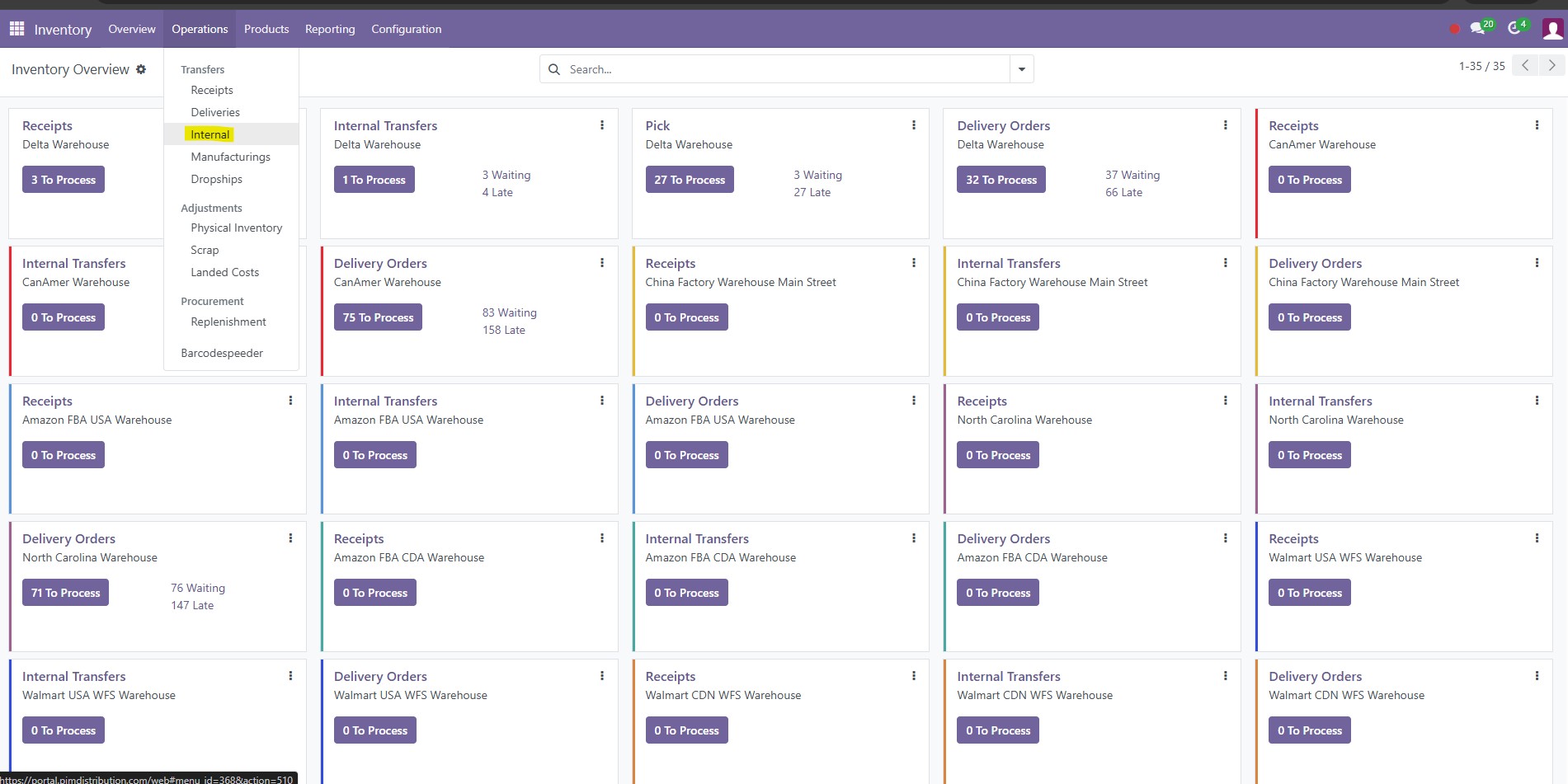
🔹Create Transfer
Click New in the top left.
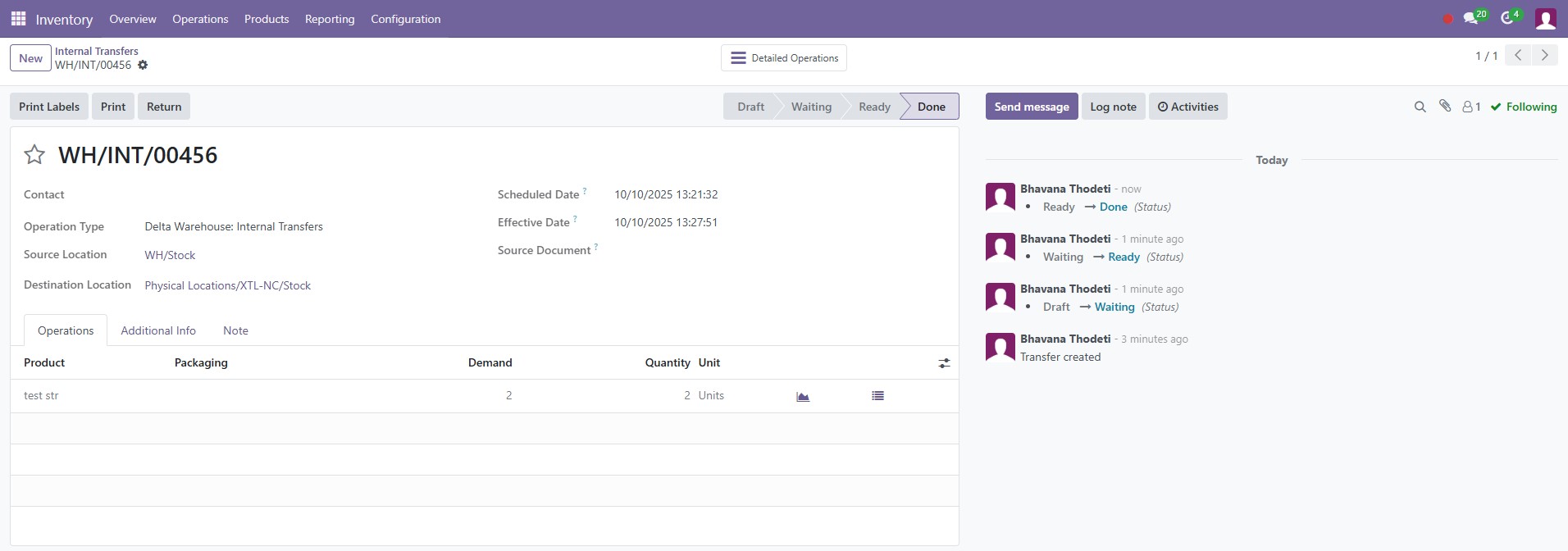
You’ll see the Internal Transfers Form like this:
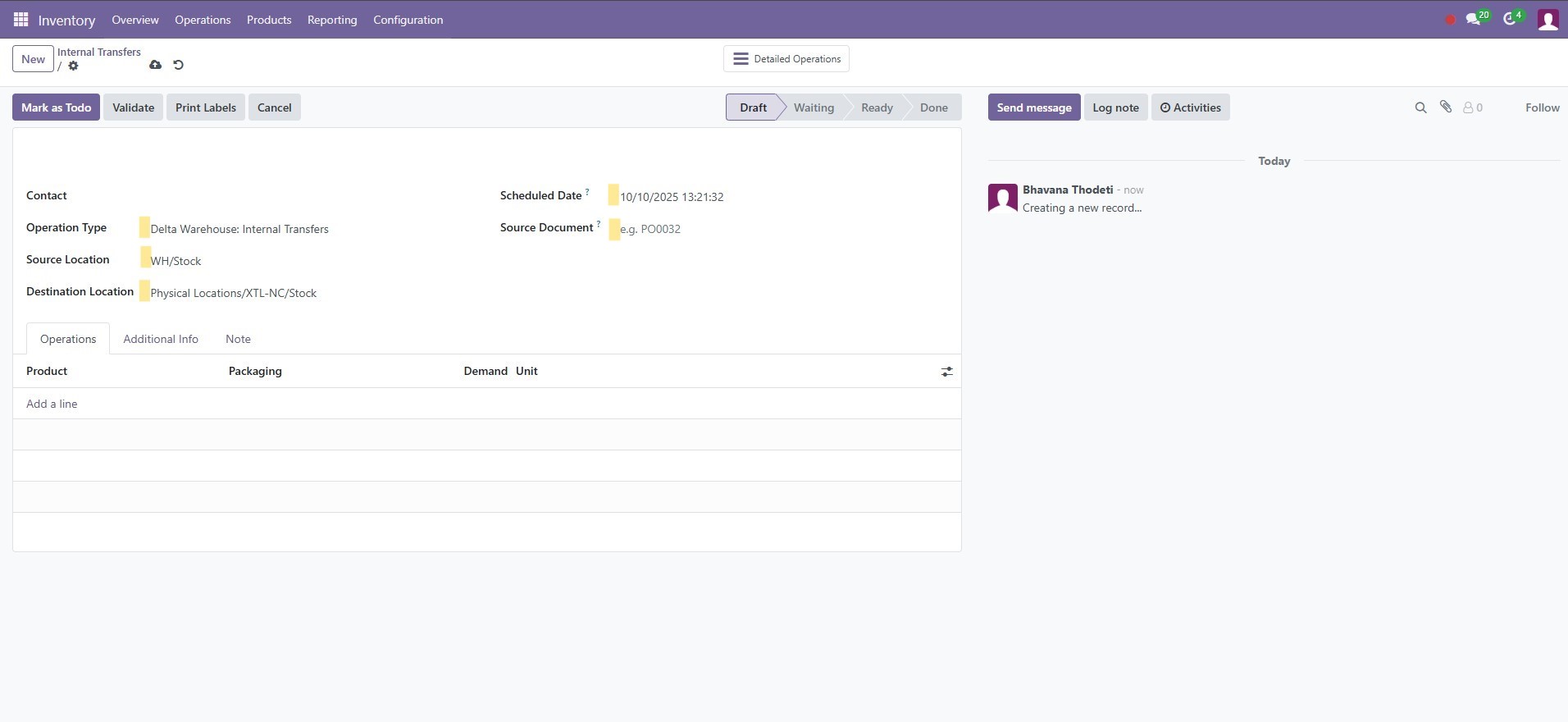
Warehouse Transfer Process – Delta → North Carolina
| Field | What to Enter | Notes |
|---|---|---|
| Contact | Leave blank (optional) | Internal transfer doesn’t need a contact. |
| Operation Type | Delta Warehouse: Internal Transfers | Confirm this matches the Delta warehouse’s internal operation. |
| Source Location | Delta / Stock (WH/Stock) | Click the dropdown if needed and select the Stock location under Delta. |
| Destination Location | North Carolina / Stock (Physical Locations/XTL-NC/Stock) | Must point to the receiving warehouse’s Stock location. |
| Scheduled Date | Today’s date (or planned shipment date) | Helps track internal logistics. |
| Source Document |
Related Sales Order # (e.g., SO####)
| Optional but recommended for traceability. |
Example: CanAmer → Delta
Select Operation Type: CanAmer Warehouse: Internal Transfers,
Source Location: CanAmer / Stock (Physical Locations/XTL-CANAM/Stock)
Destination Location: Delta / Stock (WH/Stock)
🔹 Add Products
Under the Operations tab:
- Click Add a line.
- Choose the product(s) to move.
-
Enter:
- Product → Select SKU (same as Sales Order line).
- Demand Quantity → Qty to transfer.
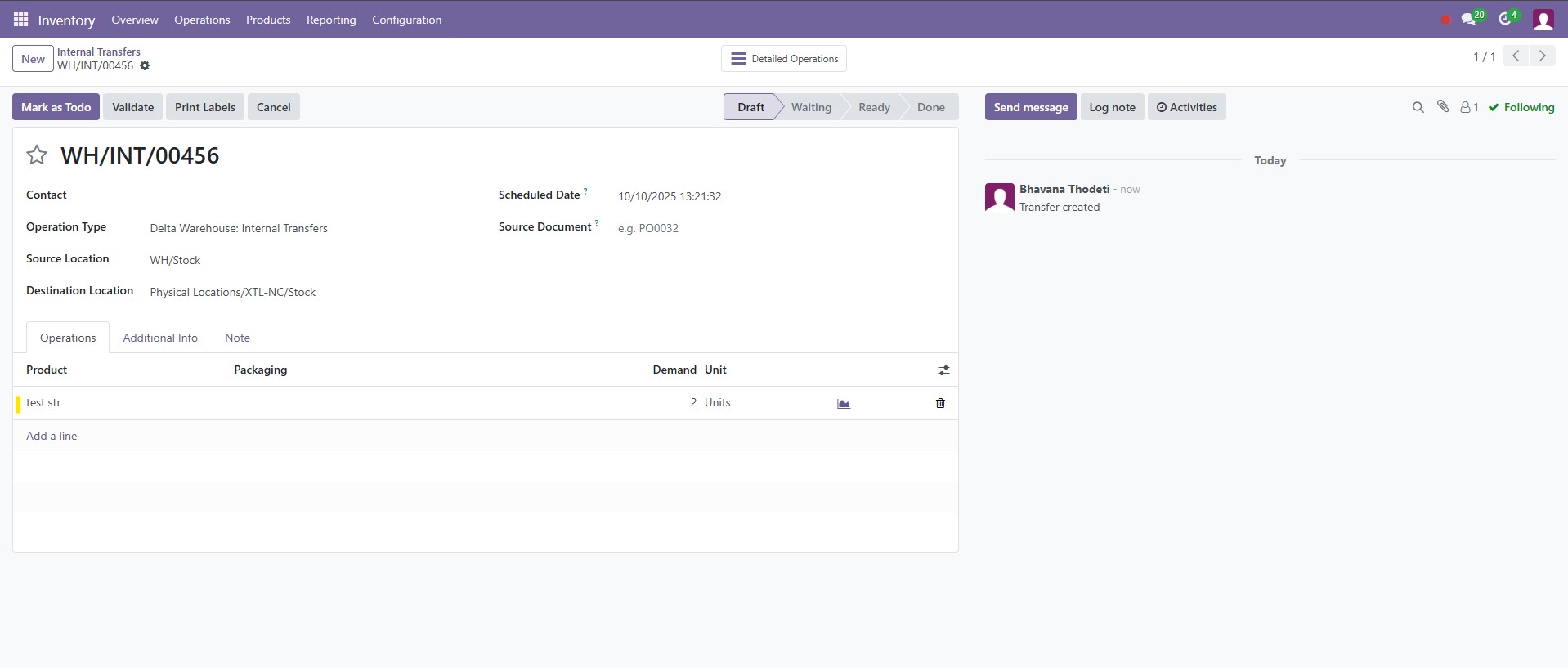
🔹 Confirm and Validate
1. Click Mark as To Do
→ This sets the transfer as ready.
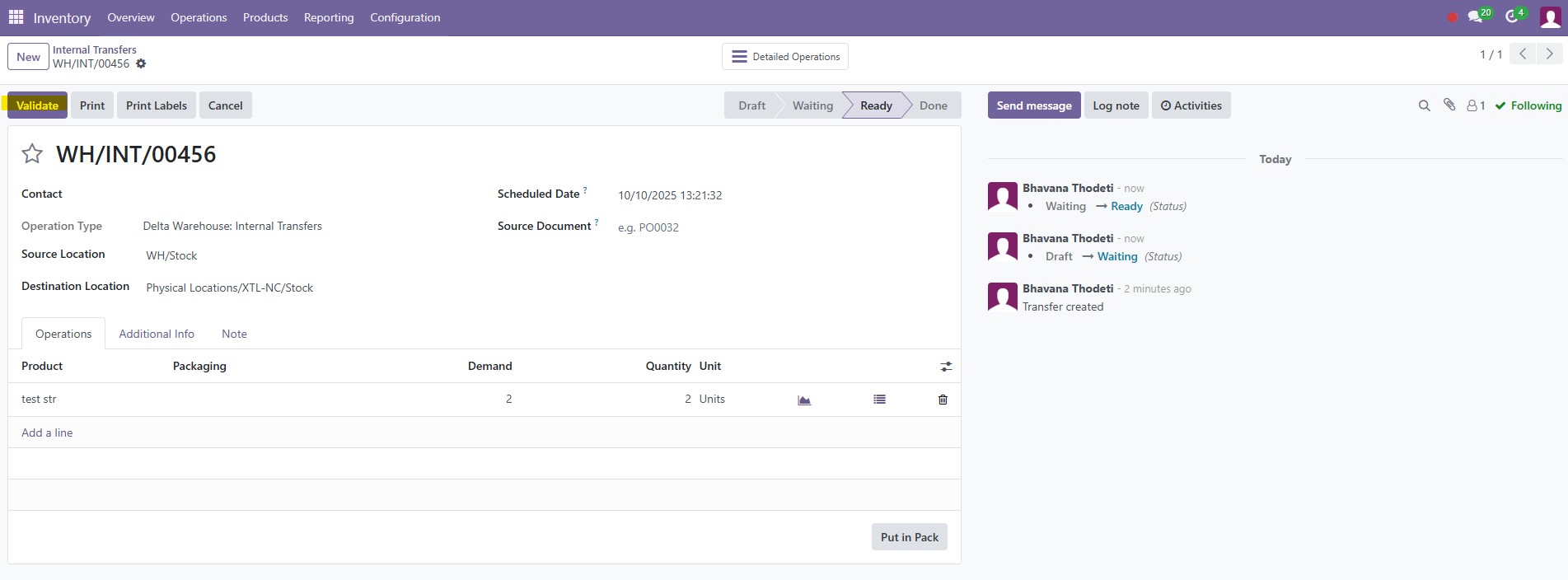
2. Warehouse team action (pick, pack & ship):
- Pick the items in Source (Delta),
- When shipped, click Validate
3. On Validate
→ Confirms the movement and instantly updates stock:
- Delta → decreases stock.
- North Carolina → increases stock.
🔹 Verify Movement
📍
Go to Inventory → Reporting → Locations
Filter by:
- Warehouse: North Carolina
- Product: [product name]

✅ You should see the transferred stock quantity reflected in NC.
✅ Operator Goal: Handle cancellations at different stages.
1. Cancel SO Before Any Validation
If neither PICK nor OUT is validated, cancelling the SO cancels everything automatically.
2. Cancel SO After PICK Validated
If PICK is Done, cancelling SO does not undo stock.
Stock remains in WH/Output until returned. (➡️
Follow the Manual Return Stock Flow Steps)
3. Cancel SO After OUT Validated
If OUT is Done, goods are considered delivered.
You must create a Return from OUT (customer return) to restock. (➡️
Follow the Manual Return Stock Flow Steps, but instead of PICK, select WH/OUT/xxx)
Cancel SO →
If PICK/OUT = Waiting → Both Cancelled
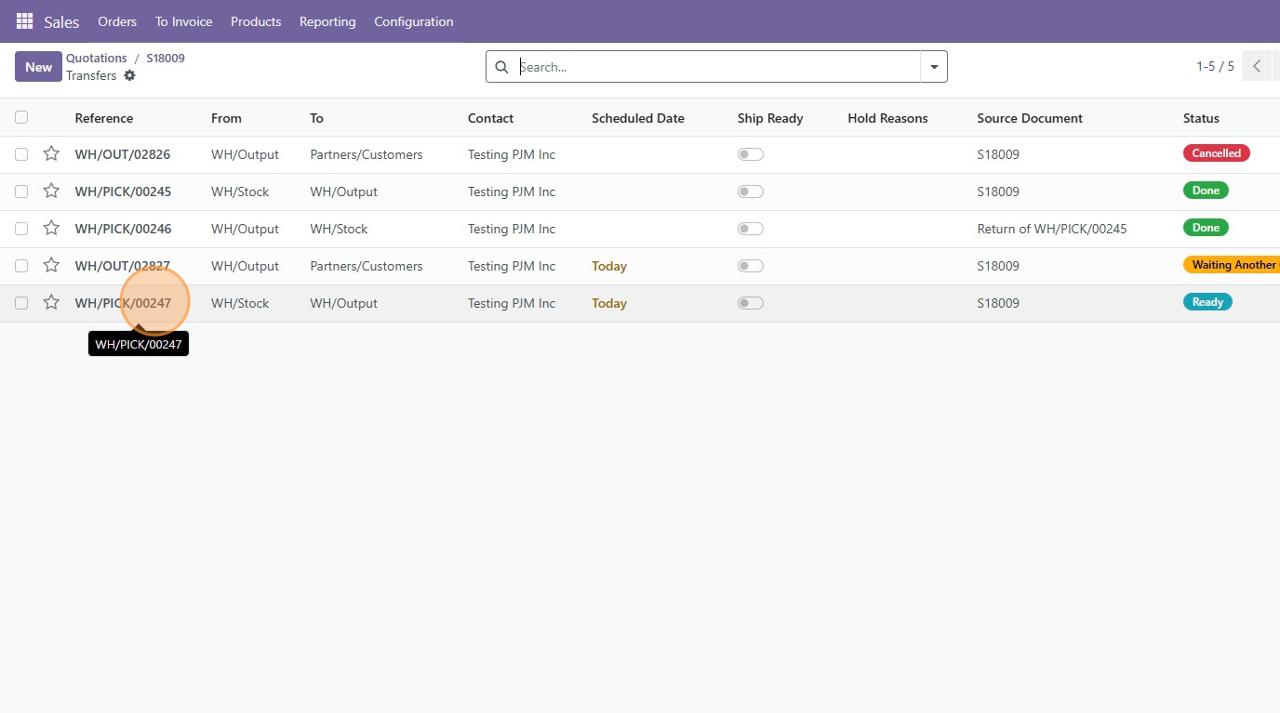
If PICK = Done → Manual Return from PICK
If OUT = Done → Manual Return from OUT
🛠 Manual Return Stock Flow
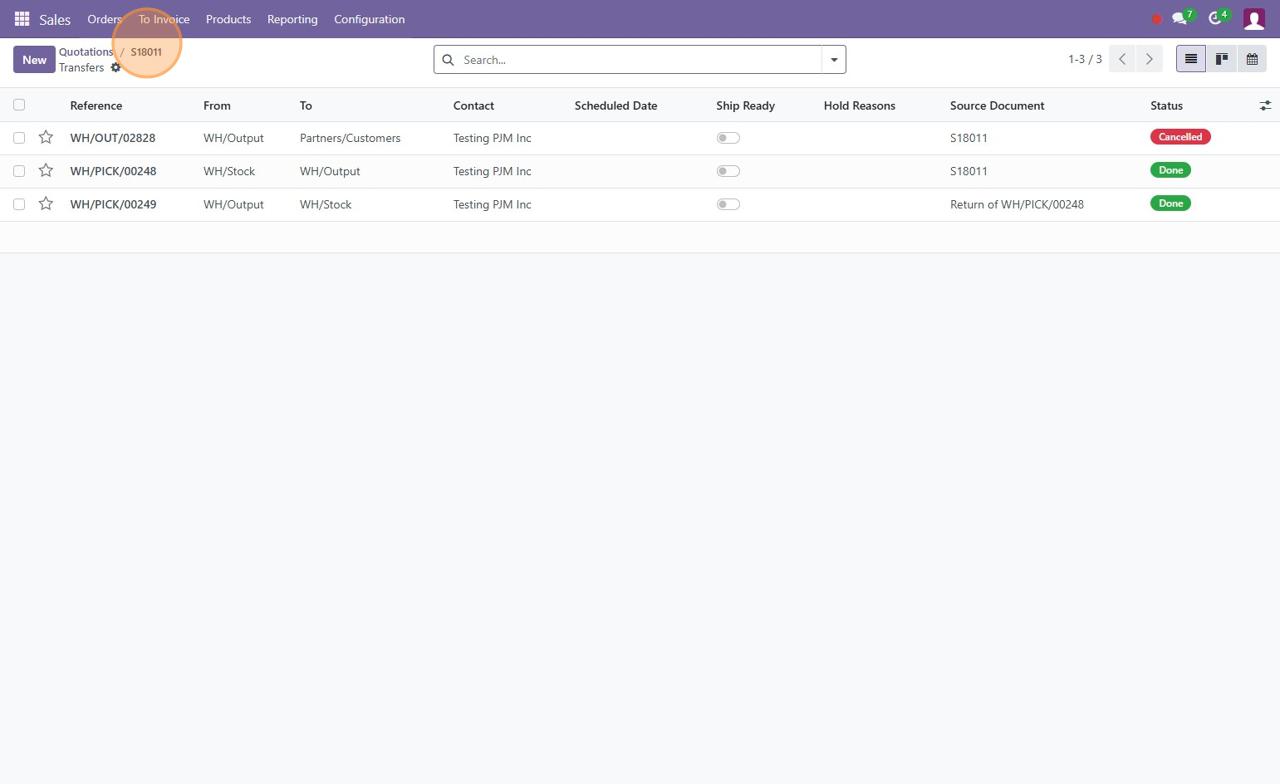
1. Locate the Done PICK
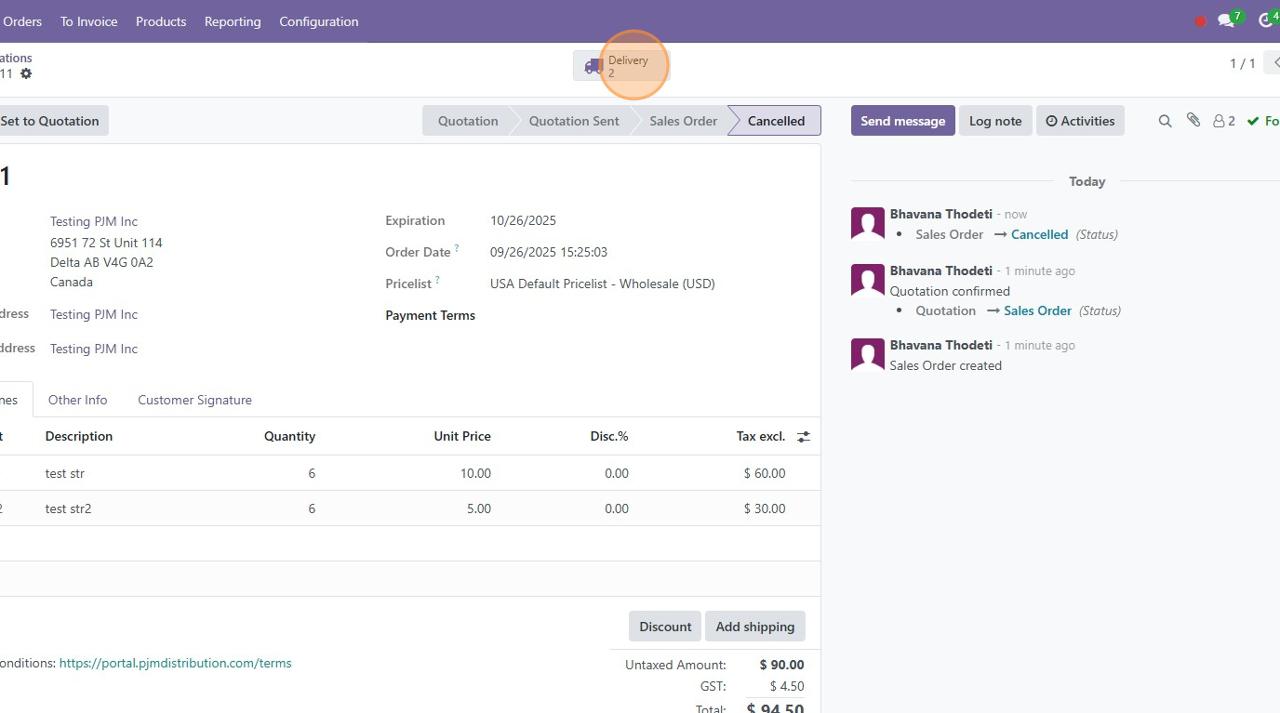
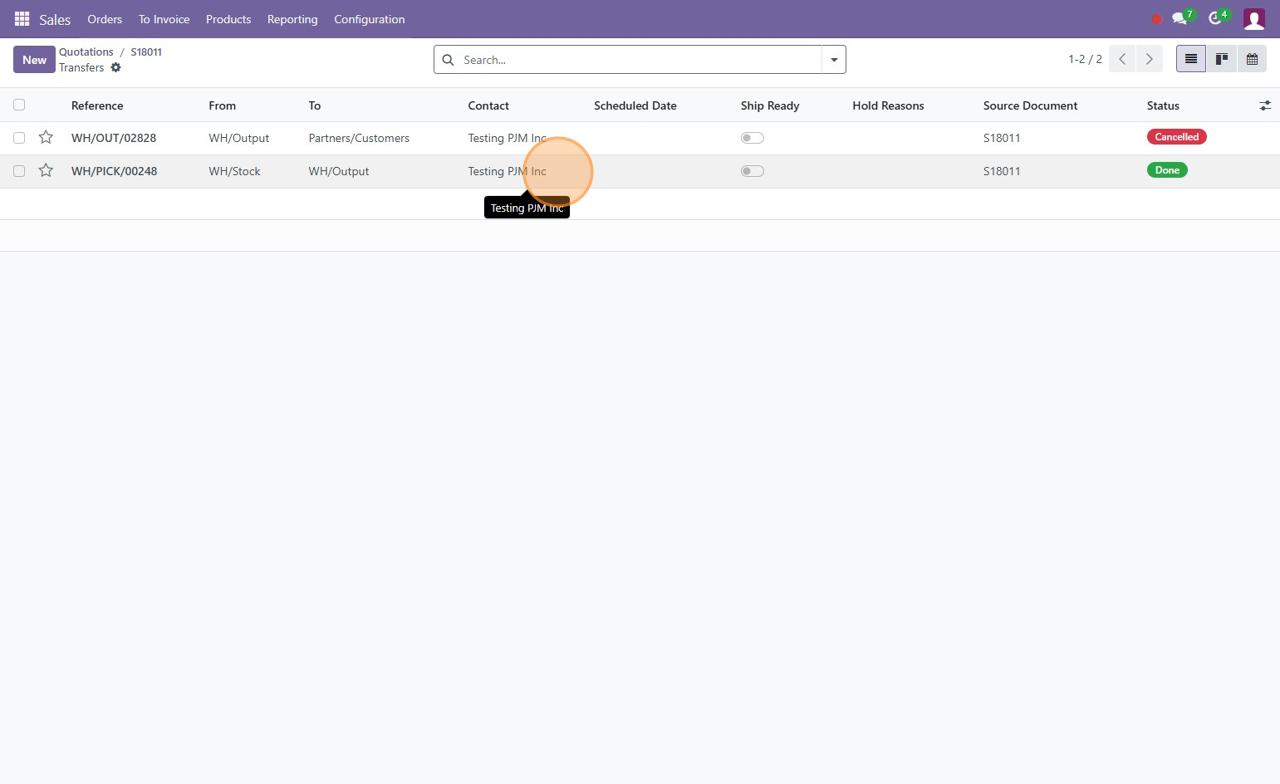
Open the cancelled SO → Transfers → open WH/PICK/xxx.
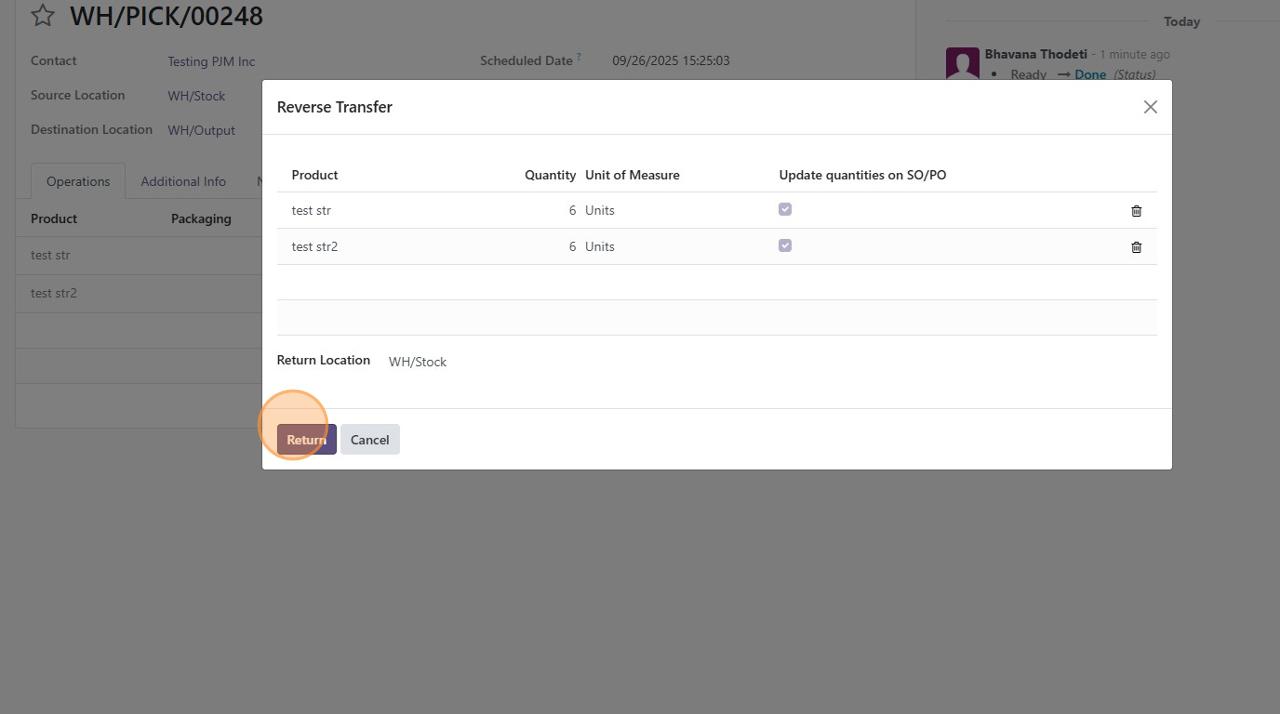
2. Click Return
On the PICK DO, click Return.
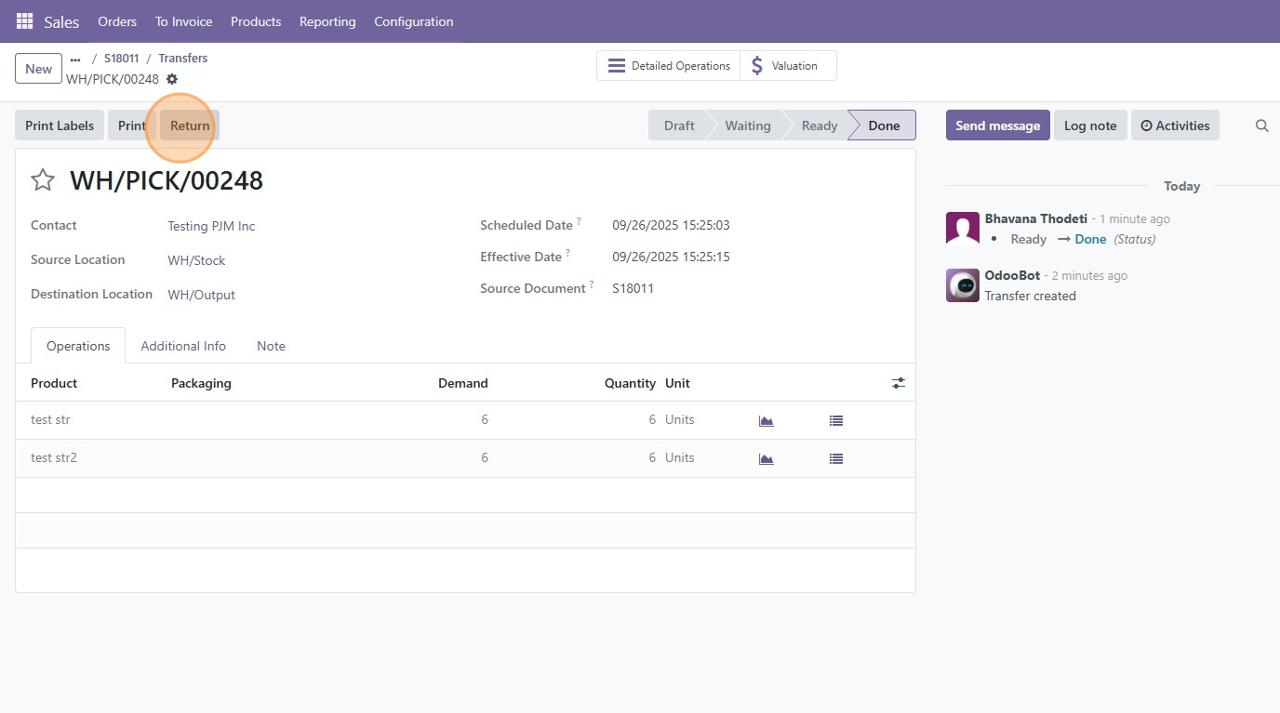
This opens the Return wizard. Confirm quantities to return.
Defaults usually match qty_done.
Confirm the return location and click 'Return'.
3. Validate Return DO
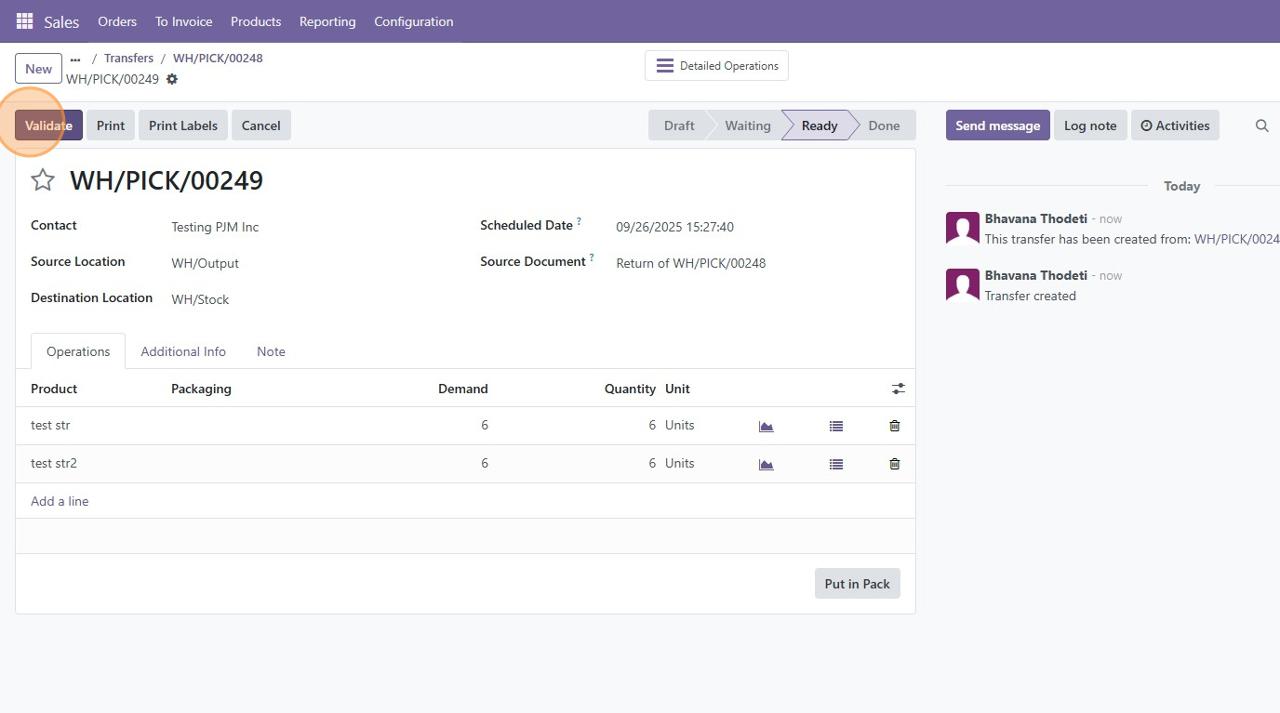
Wizard generates a new Return of WH/PICK/xxx transfer.
Destination is WH/Stock.
Click Validate.
Stock moves back into WH/Stock.
4. Verify Inventory (optional)
Check Product → Inventory tab.
On Hand should reflect returned quantities.
♻️ Re-Using Cancelled SOs
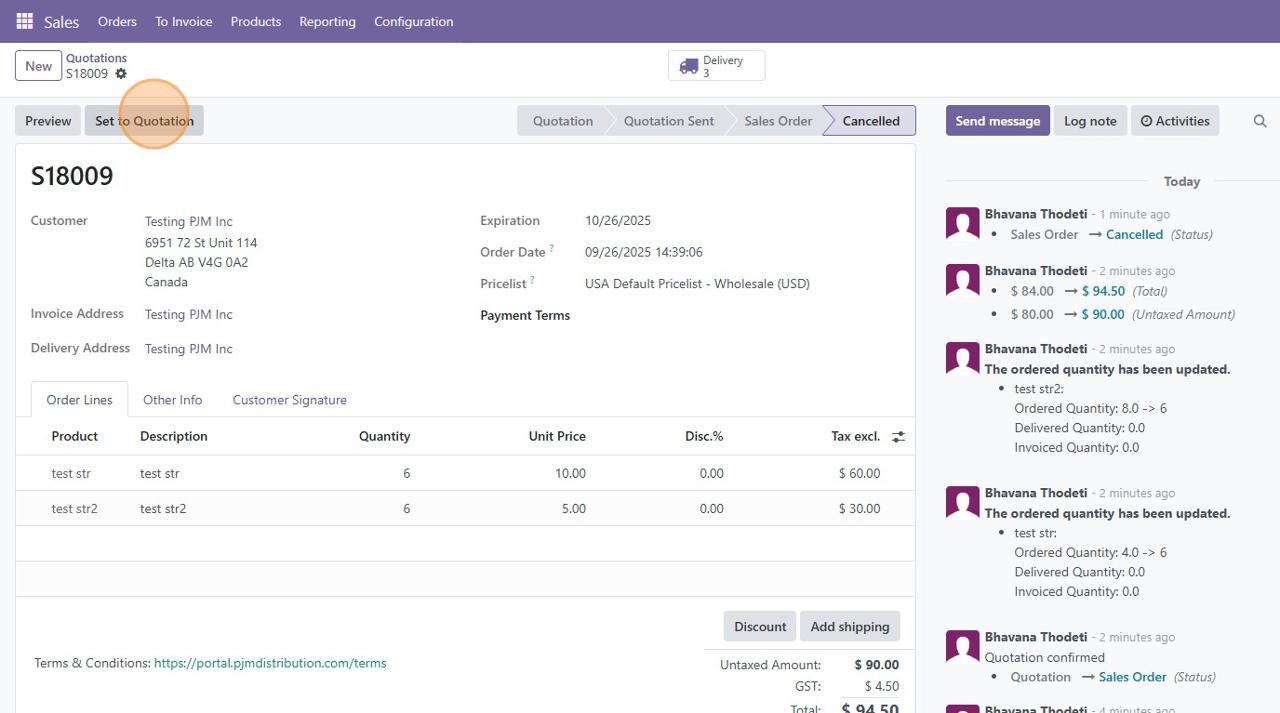
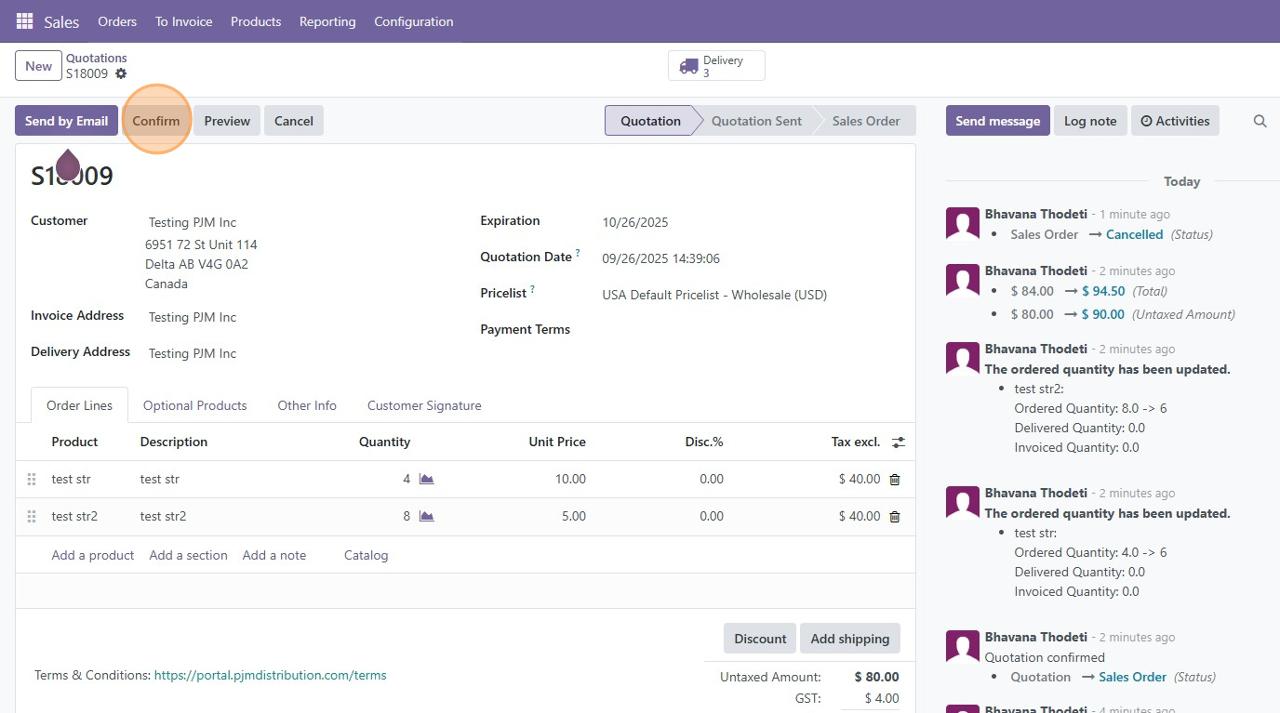
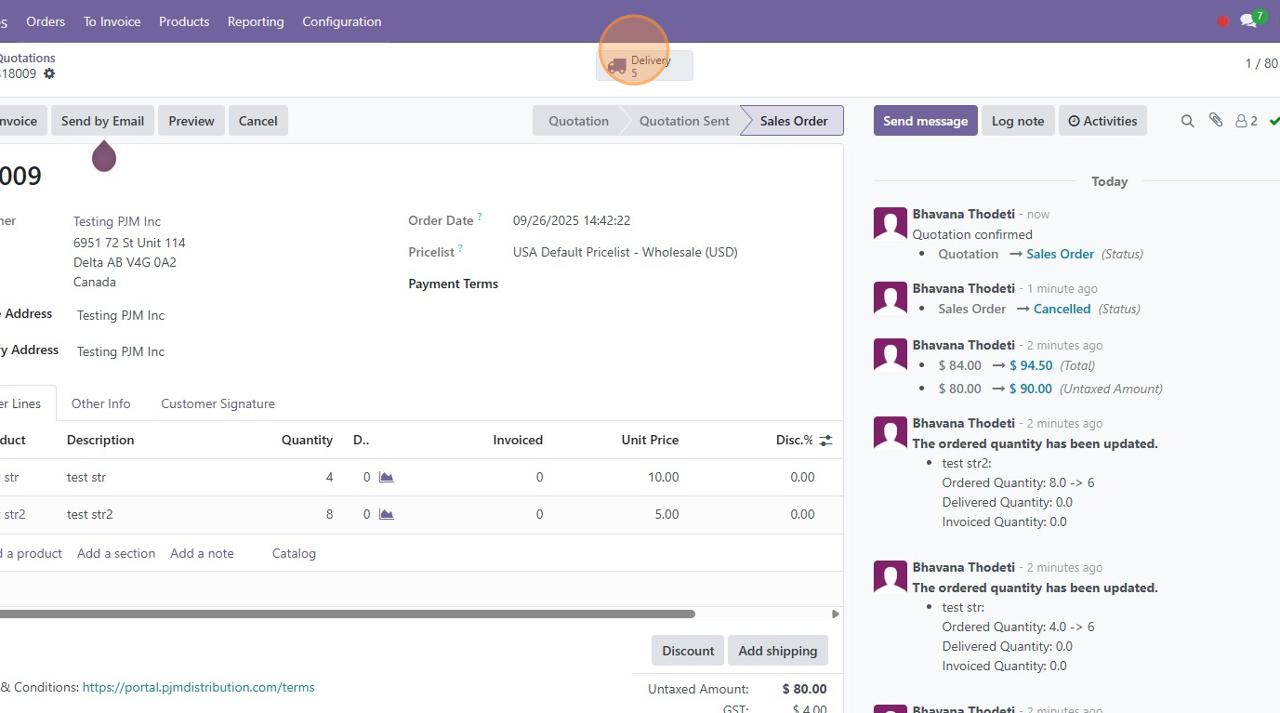
☑️ Set to Quotation
On the cancelled SO, click Set to Quotation if reusing it.
This reopens it for edits.
☑️ Confirm Again Carefully
Make adjustments, then confirm again.
⚠️ Only do this if returns are fully completed, otherwise stock will be over-reserved.
✅ Best Practices Summary
- Cancelling is safe before PICK validation; manual return needed after PICK is done.
- Always verify OUT vs PICK status before cancelling.
- Sales must notify Warehouse before cancelling if PICK has already been validated.
- Warehouse should pause validation if a cancellation request is pending.
- Manual returns must be validated to restore stock.
- Never reconfirm a cancelled SO until returns are completed.